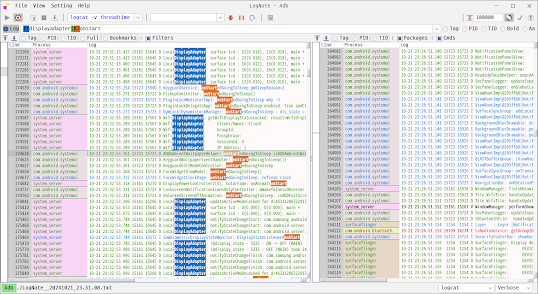
Lognote - Log viewer, Android logcat viewer for Windows, Linux, Mac

android logcat viewer for Windows, Linux, Mac


https://github.com/cdcsgit/lognote


Filtered log viewer
Android logcat viewer, kotlin + swing


Run
- Windows : start javaw -Dfile.encoding=utf8 -Xmx1024m -jar LogNote.jar
- Linux : java -Dfile.encoding=utf8 -Xmx2048m -jar LogNote.jar
- Mac : java -Dfile.encoding=utf8 -Xmx2048m -jar LogNote.jar


Tips

- Show only specific package logs(~ 0.3.8)
- Add shortcut in ubuntu
- Make screen capture(Add button, Use log trigger)

Changes

version 1.2
- Change to the last used filter with ctrl-z
- Added program restart logic to apply when changing LnF in settings
- Improved log format setting function (fix abnormal parsing when there is a blank space in the tag or no content, etc.)
- Bug fixes
  - Fixed that where each bold display is not properly done when PID, TID is a specific value such as 0
  - Fixed that where new line is deleted in the selected log view popup

version 1.1
- Improved log file format management UI
- Improved right-click function
- Added reload function in file open mode
- Bug fixes

version 1.0
- Added package selection feature for log output
- Added UI for checking selected area (check area when copying logs)
- UI update

version 0.3.8
- Bug fix (fix exception occurrence when starting on MAC)

version 0.3.7
- Added view by column
- Added process name column
- Modified UI

version 0.3.6
- Bug fixes
- Added log file format setting function (setting file format with different log level information)
- Add log trigger (execute command or output dialog when specific log occurs during aging test)
version 0.3.5
- Bug fix (fix hang during process update)
- Color tags can be applied to regex filters
- Move logcat level setting location from menu bar to bottom status bar
- Added log view (full, filtered) save function

version 0.3.4
- Bug fixes
- Add a pop-up to determine whether to apply previously used filters when opening a recent file.
- Add update cycle setting menu for process information

version 0.3.3
- When the focus is moved by key input in logcat receiving mode, log process information is displayed in the tool tip
- Execution mode displayed on the title bar
- Save / load recent files (save bookmarks)
- Code refactoring
- Outputs a list of available colors when entering '#' in the log filter combo box

version 0.3.2
- Add "Check Update" menu
- When mode is logcat receiving, process info is shown as a tooltip
- Save recent files and filters(Save filters by file)
- Code refactoring
- bug fix

version 0.3.1
- Shortcut logic refactored
- Add color tag menu when adding filter
- bug fix

version 0.3.0
- Add icon to button
- Change the titlebar according to the log mode (Open, Adb, Cmd, Follow) shown in the log view
- bug fix

version 0.2.9
- Change default font: dialog -> dialoginput
- Change text color when regular expression parsing error occurs (notification)
- Move to the previous item when shift-enter is input in search
- bug fix

version 0.2.8
- Added logcat command change function
- Added search function
    Ctrl + F: Show search bar
    ESC: Hide search bar
    F3: Move to the previous item
    F4: Move to the next item
    Click on filter or full log view: set search target view

version 0.2.7
- Added color setting function for each filter item
- Add filter text append function when Ctrl + filter button is executed

version 0.2.6
- Combine UI and log color related settings
- Changed the UI for applying the built-in color palette
- Bug fixes

version 0.2.5
- Added the ability to change the font size of UI components
- Added built-in color palette function (light, dark)
- Filter / bold text FG / BG color settings
- Save file default prefix "LogNote"
- Filter / Apply bold color in case of overlapping bold text
- Improved stability??

version 0.2.4
- Set the config file location by referring to the environment variable "LOGNOTE_HOME"
- Apply FlatLaf (https://github.com/JFormDesigner/FlatLaf)

version 0.2.3
- Apply filter input combo box multi-line
- Fixed the problem that the log aspect ratio does not change below a certain size when adjusting the log aspect ratio
- Code cleanup

version 0.2.2
- Added connection retry logic when connection is lost due to device reboot, etc.
- Save immediately when setting changes (no need to close the window)

version 0.2.1
- Added multi-line bookmark function (simultaneous bookmarking after selecting multiple lines)
- Add color setting item

version 0.2.0
- Improved logcat read speed in adb
- Improved filter application speed
- Add color setting item

version 0.1.9
- Modify so that frequently used filters can be added to the table bar
- Add order change function to filter management dialog
- Add frequently used command management function

version 0.1.8
- Show a list of open files on the status bar tooltip
- Show Error popup when adb connection view fails
- Show include and exclude items in the filter tooltip

version 0.1.7
- Hide unused filter combo box
- Close dialog when ESC key is pressed

version 0.1.6
- Open multiple files at the same time
- added tooltip
- Windows drag & drop improvement
- Added a function to pause log deletion due to scrollback limit

version 0.1.5
- Added log color setting
- Improvement of cursor movement in the entire log view when moving the cursor in the filter log view
- Improved view behavior when deleting logs due to scrollback line limitation

version 0.1.4
- Applied immediately when changing the font in settings
- Save and import filters

version 0.1.1
- Add pop-up menu
- case sensitive

version 0.0.1
- Regular expression filter
- On/Off line log view


Lognote - Make screen capture(Add button, Use log trigger)

 1. Add a screen capture button

Click the "Cmds" button in the full log view to go to "Cmd Manager"


Add a button in Cmd Manager with "New"


Create a screen capture command script and enter the path


Check the saved file by executing the screen capture button


2. Capture the screen when a specific log occurs
Run the trigger screen with View > Log Trigger
Add a trigger with the "Add" button

After executing the trigger, check the capture file save when the log occurs ("screencapture test")

Settings programs and environments when installing Ubuntu 22.04

 Things to do by default when install Ubuntu 22.04


1. Basic programs
Terminal program - Split window is more convenient than tab view
sudo apt install terminator
Install ssh server for remote connection
sudo apt install openssh-server
sh is symbolized as dash, so change it to bash
sudo ln -sf bash sh
Install for system resource monitoring
sudo snap install htop
Install to use ifconfig
sudo apt install net-tools

2. Install ZSH - Greatly increases efficiency when working on the terminal
After installing zsh, install oh-my-zsh
sudo apt install zsh
Also install curl
sudo snap install curl
Download the installation file with curl and install
sh -c "$(curl -fsSL https://raw.githubusercontent.com/ohmyzsh/ohmyzsh/master/tools/install.sh)"
Install prompt theme - It's easy to use because it looks good
cd .oh-my-zsh/custom/themes
git clone https://github.com/romkatv/powerlevel10k.git

2-1. Installing zsh plugins
With a little typing, it shows the previously executed commands
git clone https://github.com/zsh-users/zsh-autosuggestions ${ZSH_CUSTOM:-~/.oh-my-zsh/custom}/plugins/zsh-autosuggestions
Colorize the input
git clone https://github.com/zdharma-continuum/fast-syntax-highlighting.git ${ZSH_CUSTOM:-$HOME/.oh-my-zsh/custom}/plugins/fast-syntax-highlighting
More convenient when executing the cd command, display the list through fzf and move to the directory to move to
git clone https://github.com/b4b4r07/enhancd.git $ZSH_CUSTOM/plugins/enhancd
cd .oh-my-zsh/custom/plugins
git clone https://github.com/arzzen/calc.plugin.zsh.git
sudo apt install fzf
A command that adds color to the cat command
sudo apt install bat
A command that makes the ls command look better, such as by displaying icons
sudo apt install ./lsd-musl_1.0.0_amd64.deb

3. Installing fonts
You need to install nerd fonts to see the results normally while using zsh
git clone https://github.com/ryanoasis/nerd-fonts.git
cd nerd-fonts
./install.sh
Install D2Coding fonts - I like the look
.local/share/fonts/D2Coding-Ver1.3.2-20180524-all.ttc .
Apply command to installed font system
fc-cache -fv
Install fonts to see emoji
sudo apt install fonts-emojione
sudo apt install fonts-noto-color-emoji

4. Install the browser
Search/download the chrome file and install it
sudo apt install ./google-chrome-stable_current_amd64.deb

5. Install development tools
Install neovim (separate plugins)
tar xvfz nvim-linux64.tar.gz
cd nvim-linux64/bin
cd .vim
mkdir bundle
cd bundle
git clone https://github.com/VundleVim/Vundle.vim.git ~/.vim/bundle/Vundle.vim
Source management tools - git, repo
sudo apt install repo
sudo apt install python
sudo apt install python3
sudo update-alternatives --install /usr/bin/python python /usr/bin/python3.10 1
sudo apt install git
Install vscode - I mainly use c++, java, and there's nothing better than this
sudo apt-get install wget gpg\nwget -qO- https://packages.microsoft.com/keys/microsoft.asc | gpg --dearmor > packages.microsoft.gpg\nsudo install -D -o root -g root -m 644 packages.microsoft.gpg /etc/apt/keyrings/packages.microsoft.gpg\nsudo sh -c 'echo "deb [arch=amd64,arm64,armhf signed-by=/etc/apt/keyrings/packages.microsoft.gpg] https://packages.microsoft.com/repos/code stable main" > /etc/apt/sources.list.d/vscode.list'\nrm -f packages.microsoft.gpg
sudo apt install apt-transport-https
sudo apt update
sudo apt install code
Install docker when you want to avoid the build environment being affected by Linux distributions and versions
for pkg in docker.io docker-doc docker-compose docker-compose-v2 podman-docker containerd runc; do sudo apt-get remove $pkg; done
sudo apt-get update
sudo apt-get install ca-certificates curl gnupg\nsudo install -m 0755 -d /etc/apt/keyrings\ncurl -fsSL https://download.docker.com/linux/ubuntu/gpg | sudo gpg --dearmor -o /etc/apt/keyrings/docker.gpg\nsudo chmod a+r /etc/apt/keyrings/docker.gpg
echo \\n "deb [arch="$(dpkg --print-architecture)" signed-by=/etc/apt/keyrings/docker.gpg] https://download.docker.com/linux/ubuntu \\n "$(. /etc/os-release && echo "$VERSION_CODENAME")" stable" | \\n sudo tee /etc/apt/sources.list.d/docker.list > /dev/null
sudo apt-get update
sudo apt-get install docker-ce docker-ce-cli containerd.io docker-buildx-plugin docker-compose-plugin
sudo docker run hello-world
sudo usermod -aG docker $USER
git diff pretty view
chmod 755 diff-so-fancy
Comparison tool
sudo apt install ./bcompare-4.3.6.25063_amd64.deb
For C language reference in vim plugin
sudo apt install libclang-dev
For kotlin, java development
tar xvfz ideaIC-2023.2.5.tar.gz

6. Other utilities
grep improved version
sudo apt install ripgrep
find improved version
sudo apt install fd-find
Run terminal immediately at any time(drop-down)
sudo apt install guake
install teams
sudo snap install teams-for-linux
install remote desktop
sudo apt install remmina
tools for GNOME configuration
sudo apt install gnome-tweaks
sudo apt install dconf-editor
sudo apt install gnome-shell-extension-manager
virtual machine - sometimes you need windows

mount remote file system via ssh
sudo apt install sshfs
create gif capture from screen
sudo apt install peek
check temperature
sudo apt install lm-sensors
sudo apt install psensor
Drawing, Image Editing
sudo apt install gimp

Lognote - Show only specific package logs (1.0 ~)

This function uses information about installed packages, so it proceeds with the app installed first.


1. run Package list dialog(click "packages")


2. select Package(select / unselect package : ENTER key or Double click)


3 - 1. apply package - restart Logcat(ex : 2 packages selected)


3 - 2. apply package - restart Logcat (ex : 1 packages / show only selected package)


Lognote - Setting up a shortcut to re-run from the running icon in Ubuntu

 Create an executable icon desktop file.
Path: ~/.local/share/applications/Lognote.desktop
Set the Exec and Icon items according to the installed location.

[Desktop Entry]
Name=Lognote
Comment=Lognote
Exec=/home/USER/lognote/lognote.sh %U
Icon=/home/USER/lognote/lognote.png
Terminal=false
Type=Application
StartupNotify=true
MimeType=text/plain;
Categories=TextEditor;
Keywords=Text;Plaintext;
X-Ubuntu-Gettext-Domain=lognote

If you search for lognote in the Applications menu, you can see that an icon has been created.


If you add it to favorites and run it, the running icon and favorites are separated, and if you ctrl-click the icon after running, there is no response.
If other programs,  new window is created when you ctrl-click it. 

The reason is that "StartupWMClass" is not set.

If you type the "xprop WM_CLASS" command in terminal while the program you need to check is running, the cursor will change.
If you click the the program, WM_CLASS information will be output.

$ xprop WM_CLASS
WM_CLASS(STRING) = "com-blogspot-cdcsutils-lognote-Main", "com-blogspot-cdcsutils-lognote-Main"

Add "StartupWMClass=..." to the desktop file.


[Desktop Entry]
Name=Lognote
Comment=Lognote
Exec=/home/USER/lognote/lognote.sh %U
Icon=/home/USER/lognote/lognote.png
Terminal=false
Type=Application
StartupNotify=true
MimeType=text/plain;
Categories=TextEditor;
Keywords=Text;Plaintext;
X-Ubuntu-Gettext-Domain=lognote
StartupWMClass=com-blogspot-cdcsutils-lognote-Main
You can see that when you ctrl-click, a new window opens without separating it from your favorites.


How to check the size of JLabel before show it on the screen in JDialog

 When configuring a JDialog, there are times when you need to check the size of a JLabel.

Even if you set the text after creating a JLabel, its size is not set.


In this case, if you set the dialog panel and then call pack(), the size of the JLabel will be set and you can read the value.

Then, you can create the necessary UI using the read size value and set the panel again.


When a JLabel is placed next to another component, it is used to fit the window size.


Lognote - My toy project

In a project, the code work is limited


When I say, "I think it will work if I change it like this," I get, "If it doesn't cause any problems, leave it as is."

Since code can cause unexpected issues if changed, I can't change it as I please.

Especially for work...


That's why I thought of the Toy project I read in the book.

Codes that I can modify as I please without affecting my work

When I was thinking about what to make, I thought it would be good if it could help my work, so I started making a log viewer.

Since it started in 2020, I worked on it for quite a long time.

I worked on it when I had time, so it didn't progress quickly, but I think it was made usefully.


When I first made it, there were a lot of errors, so I was embarrassed..

When I looked at the log, I added the parts I thought were necessary and fixed the errors.

Since the development work was done as I wanted and didn't require anyone's permission, it was fun.

Even now, when my head feels like it's stopped, I think about how to change it and apply the changed code.


When you want to freely change the code but can't, and want to relieve that frustration, try thinking about a Toy project, which can be helpful in its own way.

Lognote - Show only specific package logs (~ 0.3.8)

If you want to show logs only for a specific package, you can use uid.
Since uids associated with package names do not overlap unless you use sharedId, you can distinguish package logs by uid.

1. Install the app
   The uid value is set when the app is installed, so install the app first.

2. Get uid value
   After installing the package, check the uid value with the following command.
   Windows - adb.exe shell cmd package dump PACKAGE_NAME
             Check the userId or packageUid value in the output.
             ex) adb.exe shell cmd package dump com.example.myapplication > package.txt
                    
Linux, mac - adb shell cmd package dump PACKAGE_NAME | grep packageUid 3. Apply the uid value confirmed to Lognote Temporary apply(test): Add "--uid=XXX" to the logcat command above in lognote. (Removed when Lognote is restarted)
     
Add settings: Add "--uid=XXX" to the logcat command. (keep when Lognote is restarted) Setting > Log cmd You can check the newly added command in the log command combo box.
     

4. Result - Only logs based on uid values

* The uid is maintained, so you only need to check the uid when installing it for the first time.

Values used by crontab

cron is a command provided in Linux to periodically schedule specific tasks.

Set up tasks through contab.

editor settings
When executing crontab -e, the select-editor command is called and the editor is set.

When you want to change the editor, run select-editor or change the value of SELECTED_EDITOR in ~/.selected_editor.

If the desired editor is not found when executing the select-editor command, change the SELECTED_EDITOR value.

When you run the crontab -e command, you can use the value in the following format.

m h dom mon dow command

field          allowed values
-----          --------------
minute         0–59
hour           0–23
day of month   1–31
month          1–12 (or names, see below)
day of week    0–7 (0 or 7 is Sun, or use names)

(Manual page crontab(5))


Example

The following lists an example of a user crontab file.    
    
# use /bin/bash to run commands, instead of the default /bin/sh    
SHELL=/bin/bash    
# mail any output to `paul', no matter whose crontab this is    
MAILTO=paul    
#    
# run five minutes after midnight, every day    
5 0 * * *       $HOME/bin/daily.job >> $HOME/tmp/out 2>&1    
# run at 2:15pm on the first of every month — output mailed to paul    
15 14 1 * *     $HOME/bin/monthly    
# run at 10 pm on weekdays, annoy Joe    
0 22 * * 1-5    mail -s "It's 10pm" joe%Joe,%%Where are your kids?%    
23 0-23/2 * * * echo "run 23 minutes after midn, 2am, 4am ..., everyday"    
5 4 * * sun     echo "run at 5 after 4 every Sunday"    
0 */4 1 * mon   echo "run every 4th hour on the 1st and on every Monday"    
0 0 */2 * sun   echo "run at midn on every Sunday that's an uneven date"    
# Run on every second Saturday of the month    
0 4 8-14 * *    test $(date +\%u) -eq 6 && echo "2nd Saturday"    
    
All the above examples run non-interactive programs.  If you wish to run a program that interacts with  the    
user's desktop you have to make sure the proper environment variable DISPLAY is set.    
    
# Execute a program and run a notification every day at 10:00 am    
0 10 * * *  $HOME/bin/program | DISPLAY=:0 notify-send "Program run" "$(cat)"

(Manual page crontab(5))


Reserved words can also be used

string         meaning
------         -------
@reboot        Run once, at startup.
@yearly        Run once a year, "0 0 1 1 *".
@annually      (same as @yearly)
@monthly       Run once a month, "0 0 1 * *".
@weekly        Run once a week, "0 0 * * 0".
@daily         Run once a day, "0 0 * * *".
@midnight      (same as @daily)
@hourly        Run once an hour, "0 * * * *".

(Manual page crontab(5))


c++ const functions and mutable

 A const function prevents its value from being changed, but the value can be changed by using the mutable keyword.

Why is mutable necessary for a function that intentionally prevents its value from changing?


A const for a variable passed as a function parameter prevents the value itself from being changed, enabling safe use.

To ensure that a function does not change the value of a member variable, the const keyword is applied to the function declaration.

The const function raises several exceptions.


1. Cannot call functions other than the same const function.


2. Member variable values cannot be changed. (Global variables can be changed)

    In most cases, this is the desired situation.


If const is set on a class member function under development, it can be modified accordingly when there is an issue.

If setting it as const is difficult, you can solve it by deleting it.


The problem arises when you use an unmodifiable library and you need to override a const function.


If class Aa is a library class, Ba must define a const function.

If you need to change member variable values in Ba class, you cannot delete const or call a function without const.

At this time, if mutable is designated for the member number, the value of the member variable can be changed.


In general, const is used when you do not want to change the value of a member variable, so using mutable is awkward.

What if the printTest function runs in a multi-threaded environment and needs to be synchronized with a mutex?

void std::mutex::lock(); The function is not a const function, so you cannot use it in printTest.


"mutable std::mutex mMutex;" Similarly, if mutable is used, locking is possible even in const functions.

mutable is seen as a necessary feature for situations like this where it is logically necessary but can't use by const.

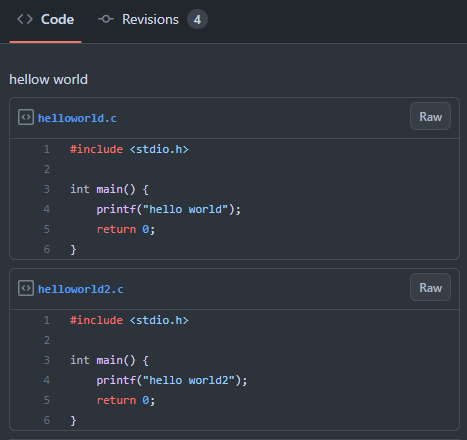
gist - to organize example code

The most necessary and used thing while writing a programming blog is to organize the code.

I applied a plugin that handles code highlighting for each blog, but it is not as easy to manage as I thought.

Explains how to organize example code using gist.

1. Go to gist ( https://gist.github.com/ )

2. After logging in, a screen for creating a new code appears.


3. Write the content.

- Gist description: A brief description of the code. You don't have to enter it, but think about it when you look at it again later.

- Filename including extension: Code highlighting according to the extension.

- Enter code

- Create secret gist: It is not searchable, but anyone can see it. (If you declare it as public, you can search it)


4. Import to your blog

- Copy the script code from Embed.


- Go to the blog html view.

- After pasting the copied code, check it in the blog preview.

- A code added through Add file moves together through Embed code.

  => If you want to do it individually, you need to create a new one through "+" at the top right, not Add file.


It is managed by revision, so it is possible to check previous revisions.

I won't use it often, but I think I'll see the previous contents at least once.


View the code applied to the blog


Kotlin syntax different from Java

While using kotlin, it summarizes differences from java and sample codes.

0. The main function does not have to be inside a class.

If the main function is defined without a class, a class is created with the file name and the main function is put into it.

1. All primitive types are classes.

Basic types are not very different from Java, but they are all in the form of classes.

2. At compile time, a check is made for the scope of the base type.

An error occurs when initializing a value beyond the maximum value, such as val a: Byte = 500.

You can prevent overflow for an initial wrong type.

3. Add fun to function definitions, val and var to variable definitions.

fun foo(a: Int): Int   // fun function_name(parameter): return_type

Add val or var in front of a variable, where val means that does not change to value, and var means that changes to variable.

4. Using a for loop

Can be used in multiple styles.

5. if, when

You can use an if statement as a value, like val c = if (a == 5) "a is 5" else "a is not 5". In this case, there should always be an else.

You can think of using when instead of switch. Use else instead of default.

The values used in when are used from basic types to class objects,

Multiple values can be grouped into one item using ','.

6. Defining member variables

If the class name parameter is defined as val or var, it becomes a member variable. It is mainly used in "data class" types.

Member variables can be initialized with the passed parameters, and can also be initialized using the init block.

In the case of var variables, you can use lateinit to delay initialization (initialize them before use).

lateinit cannot be used on val variables. val is immutable and must be initialized at creation time.

7. Defining getters and setters

In Java, you need to define get~, set~ methods, but in kotlin, you can attach get(), set(value) under member variables.

Getters and setters are simply defined, and set and get are automatically called when values are assigned or used as if using variables.

8. Using Inheritance

A class in Kotlin is a final class in Java. not inherited

Kotlin's open class is Java's class. inheritance is possible

Functions that can be overridden are prefixed with "open". When override it, add "override" in front.

Abstract classes are defined using the "abstract" keyword.

9. Null Stability - 1

When defining a variable, add "?" to determine whether to use null.

var testName: String? = null

If you attach "!!" when using it, a null pointer exception occurs when it is a null value, as when using it in java.

If you use it with "?", it doesn't do anything if it is a null value.

dog.printName()   // compile error
cat2.printName()

Both of them did a null check in the if statement, but one generated a compilation error and the other did not.

The difference is whether the value of the variable can be changed after the if statement.

If dog is a member variable and operates in multi-thread, it may change in another thread immediately after passing the if statement.

cat2 is a local variable that cannot be changed within the function. After checking for null, "." It is possible to use only

10. Null Stability - 2

dog?.let defines a block that operates only when dog is not null and accesses dog using "it".

The elvis operator "?:" simplifies the if statement.

11. data class

It is defined by attaching data in front of the class name. If the defined value is the same in the constructor parameter, true is returned during == operation.

Use "===" to check whether objects are the same.

The data class internally defines several methods such as copy and equals. (Recommended to convert and compare with java code)

12. Using Arrays

Returns an array whose values are set through arrayOf.

The value of the array can be changed (you can see what it means by comparing it to List).

There is also a way to define the number other than value setting, and it is possible to set an initial value like "IntArray(10) { index -&gt index }".

In the case of arrays related to numbers like Int type, frequently used operation functions such as sum and average are added.

13. List, MutableList

The main data storage types include a List with order, a Set without duplicate values, and a Map connected with a key.

These types cannot be changed in value, and if you want to change it, define it as a type with Mutable attached. (MutableList...)

14. Lambda expression

These days, when you look at development languages, you often see support for lambda expressions (c++, java, etc.).

It is a useful development method if you know and use it.

This expression is used when you want to access the created object's variable from another object and create the desired result.????

As I said, it is not easy to explain, but I recommend that you understand it by looking at several sample codes.

In the example code, { num -> list.contains(num) } is created as an internal object and its reference is passed to LambdaTest.

It's important to understand where lambda expressions act as inner objects.


15. Coroutines are not multi-threaded.

When I first saw it, I understood it as a multi-threaded concept because it said light concurrent work.

The operation is completely different because it is a concurrent operation that is performed without context switching.

When calling delay, which is used for coroutines, the control passes to scope management.

I think each coroutine will be called according to the delay time, but unlike multi-threading, the guarantee that it will be called is weak.

If the coroutine execution is short and a delay is called to move to scope management, you may get the desired result.

If coroutine execution is long, coroutines within the same scope are not guaranteed to be executed in time.

If you put sleep, other coroutines do not work until sleep ends.

It is used when asynchronous execution with short execution time is required.

Change to a lower version of the ubuntu kernel

When changing the kernel version in ubuntu, proceed in the following order.

Install the kernel to change

sudo apt install linux-image-5.15.0-70-generic

change grub order

Change GRUB_DEFAULT="1>4" in /etc/default/grub file
The meaning of "1>4" is to select 4 (5th item) after moving 1 (advanced, second) in the grub menu.
The value can change depending on the kernel installed situation. (/boot/grub/grub.cfg)

Apply grub changes

sudo update-grub

If the driver does not operate normally after booting, install the following two packages additionally

If already installed, reinstall with reinstall instead of install

sudo apt install linux-headers-5.15.0-70-generic
sudo apt install linux-modules-extra-5.15.0-70-generic

Checking when lock and unlock are called in std::lock_guard and std::unique_lock

std::lock_guard calls lock at creation time and unlock at destruction time (end of block).


std::unique_lock calls lock at creation time and unlock at destruction time (end of block).

In addition, lock and unlock can be called (maintaining the state value for lock).


#include <iostream>
#include <string>
#include <mutex>
 
class TestMutex {
    public:
        void lock() {
            std::cout << "call lock" << std::endl;
        }
        void unlock() {
            std::cout << "call unlock" << std::endl;
        }
};
 
TestMutex mutex1;
 
int main() {
    std::cout << "###### lock_guard start" << std::endl;
    {
        std::lock_guard lockGuard(mutex1);
        std::cout << "lock_guard created" << std::endl;
    }
    std::cout << "###### lock_guard end" << std::endl << std::endl;
 
    std::cout << "###### unique_lock start" << std::endl;
    {
        std::unique_lock uniqueLock(mutex1);
        std::cout << "unique_lock created" << std::endl;
    }
    std::cout << "###### unique_lock end" << std::endl << std::endl;
 
    std::cout << "###### unique_lock start 2" << std::endl;
    {
        std::unique_lock uniqueLock(mutex1);
        std::cout << "unique_lock created" << std::endl;
        std::cout << "manual call unlock ++" << std::endl;
        uniqueLock.unlock();
        std::cout << "manual call unlock --" << std::endl;
    }
    std::cout << "###### unique_lock end 2" << std::endl << std::endl;
 
    std::cout << "###### unique_lock start 3" << std::endl;
    {
        std::unique_lock uniqueLock(mutex1);
        std::cout << "unique_lock created" << std::endl;
        std::cout << "manual call unlock ++" << std::endl;
        uniqueLock.unlock();
        std::cout << "manual call unlock --" << std::endl;
        std::cout << "manual call lock ++" << std::endl;
        uniqueLock.lock();
        std::cout << "manual call lock --" << std::endl;
    }
    std::cout << "###### unique_lock end 3" << std::endl << std::endl;
 
 
    return 0;
}

Execution result


$ ./a.out
###### lock_guard start
call lock
lock_guard created
call unlock
###### lock_guard end

###### unique_lock start
call lock
unique_lock created
call unlock
###### unique_lock end

###### unique_lock start 2
call lock
unique_lock created
manual call unlock ++
call unlock
manual call unlock --
###### unique_lock end 2

###### unique_lock start 3
call lock
unique_lock created
manual call unlock ++
call unlock
manual call unlock --
manual call lock ++
call lock
manual call lock --
call unlock
###### unique_lock end 3

grep previous line next line


grep -B 1 TEXT file      // previous line
grep -A 1 TEXT file      // next line
grep -a 1 TEXT file      // previous and next lines

When programming is hard

There are no coding rules.
It's a code that many people see, but there is no response 
even if you shout coding rules, and the code is getting harder and harder to see.
The result is that I am the only one who is sensitive.

Copy the repeated logic.
The code will have the same logic A, A', A'', A'''. 
You can fix the problem quickly, but it's hard later.
Later, there was a problem with A, so I fixed it, and after a while, I am fixing A'... After a while...
Let's subtract with a function what we think is repeated.

Programming languages also change.
C++ 20 years ago is different from C++ now.
Most, but not all, newer versions will find an easier way.
When you ctrl-c ctrl-v on old code, see if it can be improved.

Refactoring
"It's working fine. Leave it as it is."
If I change it, it's my responsibility... I can't touch it

install ubuntu 16.04 python 3.6

Run below command


sudo add-apt-repository ppa:deadsnakes/ppa
sudo apt-get update
sudo apt-get install python3.6
python3 --version
sudo update-alternatives --install /usr/bin/python3 python3 /usr/bin/python3.5 1
sudo update-alternatives --install /usr/bin/python3 python3 /usr/bin/python3.6 2
sudo update-alternatives --config python3

Common mistakes when using buffer sizing functions such as strncpy, snprintf, and strncmp

strncpy, snprintf : specify buffer size as source string size => must specify destination buffer size


There are many cases where the size of src and dst in the same function are the same, so there are few cases where the problem occurs

However, a problem occurs when receiving src as a function argument.


char* src = "012345678";
char dst[5] = { 0, };

strncpy(dst, src, strlen(src)); // buffer overflow
snprintf(dst, strlen(src), "%s", src); // buffer overflow

strncmp: String comparison is used for purposes that do not exceed the buffer size, such as the above function, resulting in unintended results.


When specifying the number, it is used only when only the first n characters of the string need to be compared, and strcmp is used to compare the entire string.


char* str1 = "";
char* str2 = "abcd";

strncmp(str1, str2, strlen(str1)); // return 0 : equal, no character comparison as n value is 0
strncmp(str1, str2, strlen(str2)); // return non-zero value: different

char* str3 = "ab";
char* str4 = "abcd";

strncmp(str3, str4, strlen(str3)); // return 0 : equal, compare the first 2 characters
strncmp(str3, str4, strlen(str4)); // return non-zero value: different

Using strcpy, strncpy, sprintf, and snprintf safely

strcpy: The length of src must be less than the length of dst.


char *src = "AAA";
char dst[10] = { 0, };
if (strlen(src) < sizeof(dst) {
	strcpy(dst, src);
}

strncpy: If the length of src is greater than or equal to dst, the '\0' at the end of dst disappears, so dst length - 1 should be set as n.


char *src = "AAA";
char dst[10] = { 0, };
strncpy(dst, src, sizeof(dst) - 1);

sprintf : The format string must not exceed dst.

snprintf : Set the length value keeping in mind that '\0' is entered at the end of the length n.


char *src = "aaaaa"
int src2 = 10000

char dst[10] = { 0, };

snprintf(dst, sizeof(dst), "%s%d", src, src2); // "aaaaa1000" The last character is truncated.

Handling text change events in JTextField and JLabel

JLabel : PropertyChangeListener

JTextField : DocumentListener

 import javax.swing.*;  
 import javax.swing.event.DocumentEvent;  
 import javax.swing.event.DocumentListener;  
 import java.beans.PropertyChangeEvent;  
 import java.beans.PropertyChangeListener;  
   
 public class TestClass {  
   JLabel mLabel = new JLabel("TEST");  
   JTextField mTextField = new JTextField("TEST");  
   
   TestClass() {  
     mLabel.addPropertyChangeListener(new MyChangeListener());  
     mTextField.getDocument().addDocumentListener(new MyDocumentListener());  
   }  
   
   private class MyChangeListener implements PropertyChangeListener {  
     @Override  
     public void propertyChange(PropertyChangeEvent evt) {  
       if ("text".equals(evt.getPropertyName())) {  
   
       }  
     }  
   }  
   
   private class MyDocumentListener implements DocumentListener {  
     @Override  
     public void insertUpdate(DocumentEvent e) {  
   
     }  
   
     @Override  
     public void removeUpdate(DocumentEvent e) {  
   
     }  
   
     @Override  
     public void changedUpdate(DocumentEvent e) {  
   
     }  
   }  
 }  

Lognote - Log viewer, Android logcat viewer for Windows, Linux, Mac

android logcat viewer for Windows, Linux, Mac   https://github.com/cdcsgit/lognote Filtered log viewer Android logcat viewer, kotlin ...